How it Works
1
Book
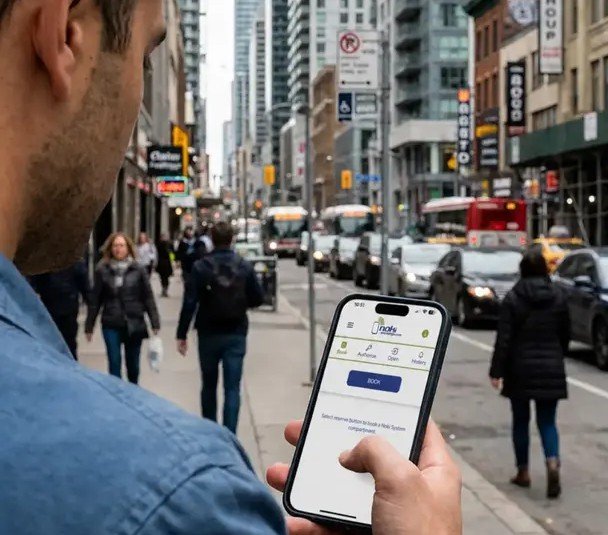
Reserve a Noki compartment
in seconds.
2
Authorize
Create a secure passcode to share with others.
3
Access
The recipient uses the passcode to open/return key.
Noki Exchange App - Key Access Made Simple
One app for all your locations.
Book, share, and manage access instantly.
Smart reminders and notifications.
Track compartment usage.
Book, share, and manage access instantly.
Smart reminders and notifications.
Track compartment usage.
How It Works
Download the App
Download “Noki Exchange” the mobile app to book a compartment, manage your booking, and end it from anywhere.
Apple: Download Here
Android: Download Here
Please note: Noki Exchange does not have a desktop portal. All bookings and account activity are managed directly through the mobile app.
Apple: Download Here
Android: Download Here
Please note: Noki Exchange does not have a desktop portal. All bookings and account activity are managed directly through the mobile app.
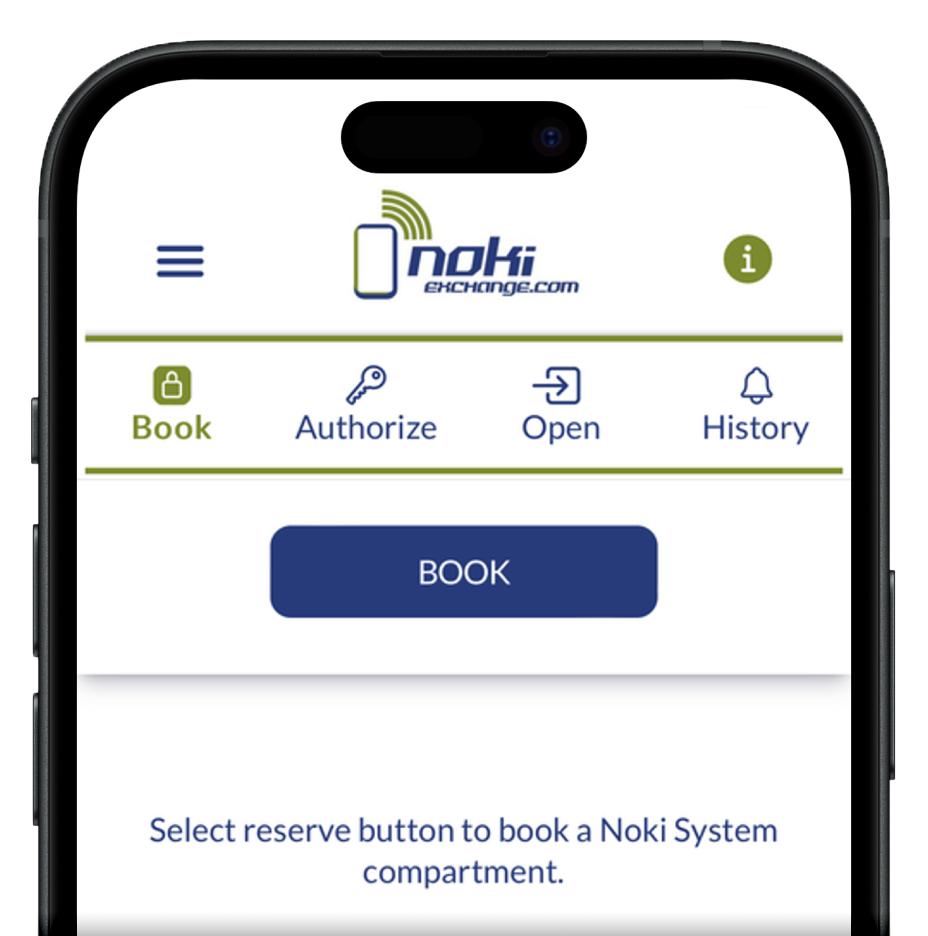
Book a Compartment
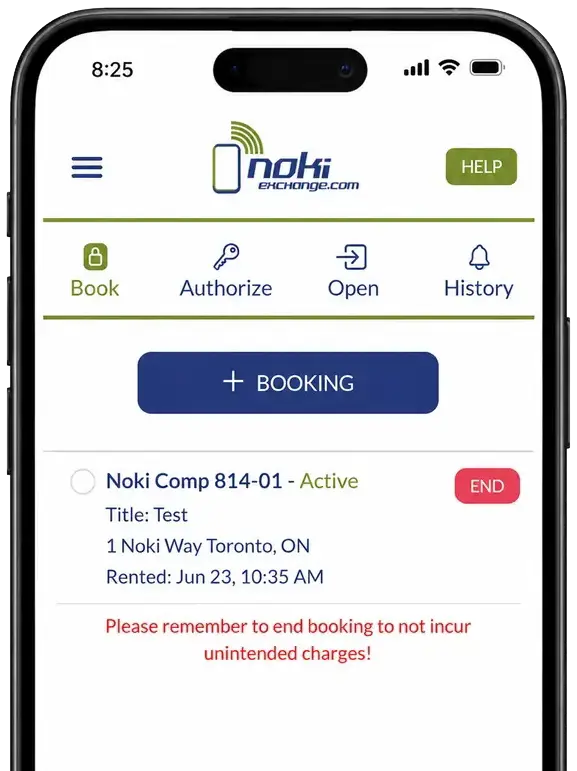
Tap Book to reserve a compartment.
- Enter the Noki system number displayed on the system at the location.
- Create a name to easily identify your booking.
- Select your preferred duration, agree to the terms, and complete payment.
- Once payment is confirmed, your compartment is ready to use.
- Insert key by using the Open tab.
Create a Passcode
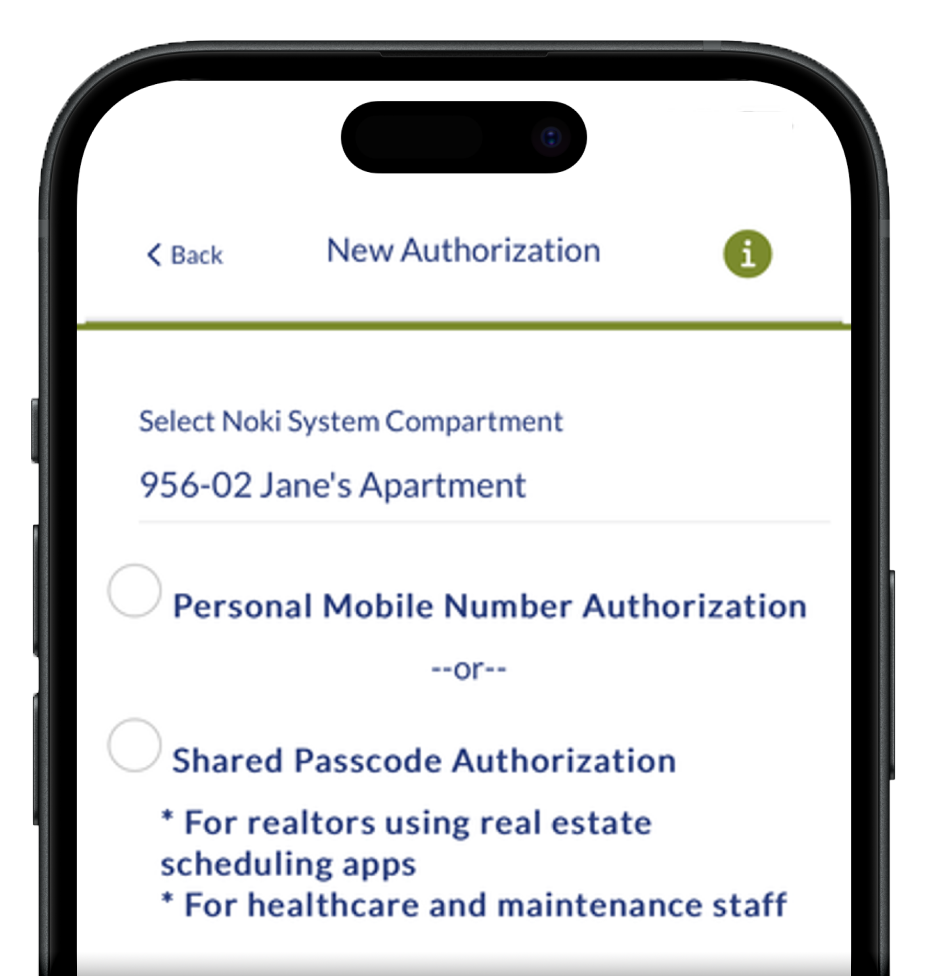
Select the Authorize tab to create a passcode for someone else to access your key.
-
- Use an Individual Passcode to schedule one-time access for a specific person, date, and time.
- Use a Shared Passcode when multiple people need access. Each use is tracked by the person’s name, making it ideal for realtors.
Please note: For added security, we recommend changing shared passcodes once a month. To update a passcode, open the Authorize tab and select your active passcode.
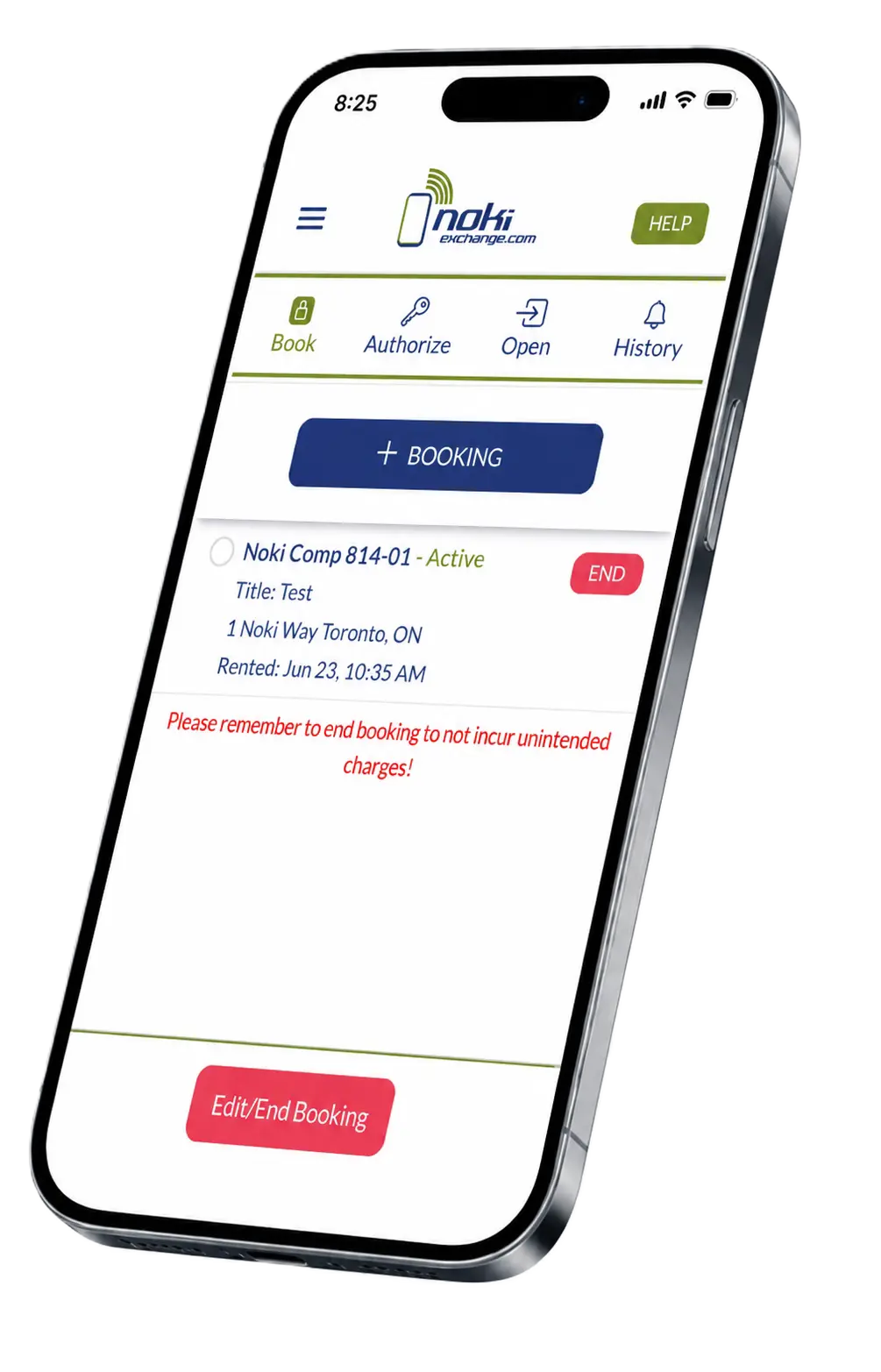
End Your Booking
Under the Book tab, select your active booking, click End, and follow the prompts to End Booking.
Please note: Remove your key before ending the booking. You will lose access immediately once the booking is ended, and
Noki is not responsible for keys left inside the compartment.
Please note: Remove your key before ending the booking. You will lose access immediately once the booking is ended, and
Noki is not responsible for keys left inside the compartment.
Scheduling
Control user access by date, time and duration.
Open & Return a Key
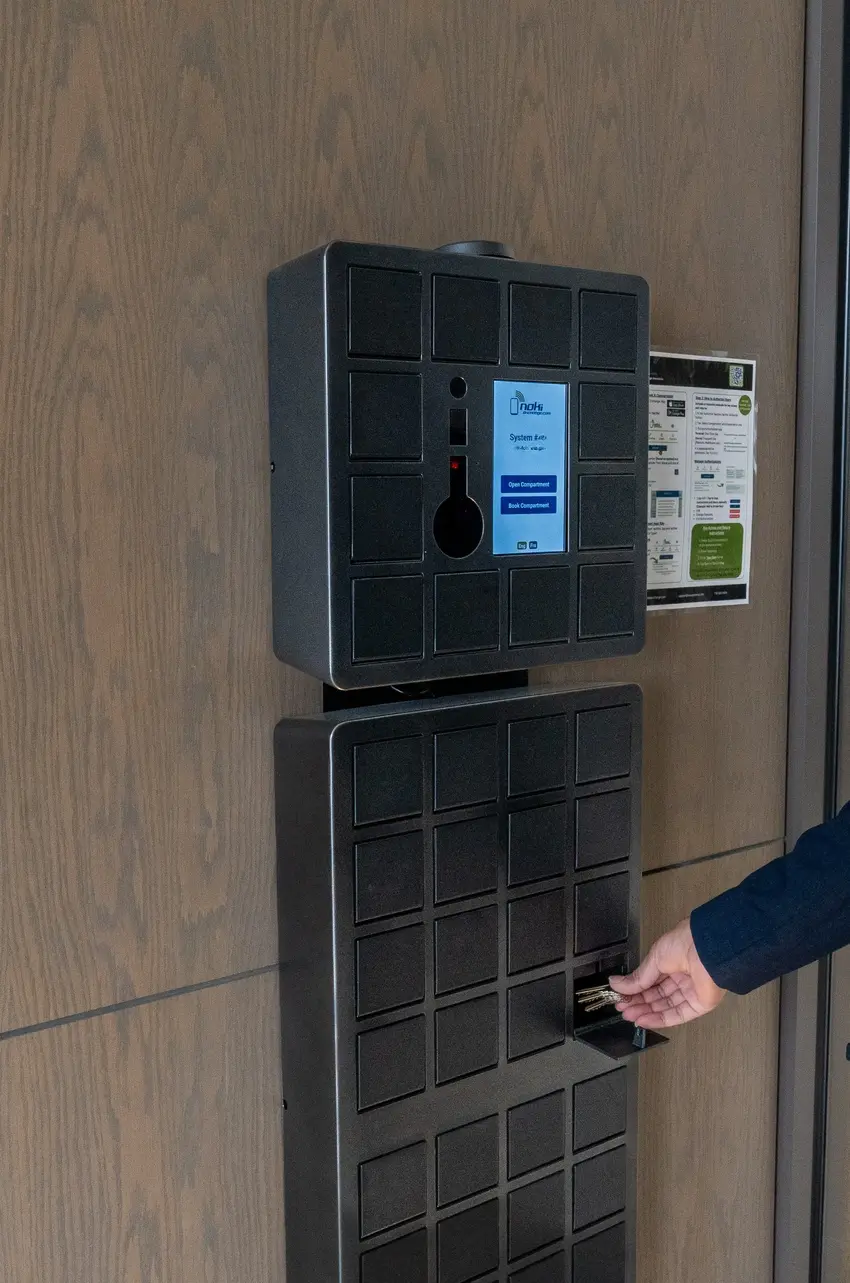
- Tap the screen and enter the passcode provided.
- Enter your own name if prompted.
- Select Open/Return Key.
- Remove or return the key and firmly close the compartment.
Scheduling
Control user access by date, time and duration.
FAQ
Book a compartment
How does booking a compartment work?
Download the Noki Exchange app, tap Book, enter the system number, select your booking duration, agree to the terms, and complete payment. Once confirmed, you will receive access to your reserved compartment.
Where can I find the system number?
The system number is displayed directly on the Noki Exchange system at the property.
Will my booking automatically renew?
Yes. Your booking will automatically renew based on the selected duration until you end it through the Noki Exchange mobile app.
How do I insert my key?
Tap Open in the main menu or enter your personal passcode on the Noki system to open your assigned compartment. Place the key inside and close the door.
Should I share my personal passcode?
No. Your personal passcode should never be shared. Use the Authorize tab in the app to create a separate passcode for anyone who requires access.
Authorize Users with a Passcode
How do I create a passcode?
Open the Authorize tab in the Noki Exchange app, select your active booking, choose the type of passcode you would like to create, and follow the prompts.
What is the difference between an Individual and Shared Passcode?
An Individual Passcode is best for providing a specific person with access during a selected date and time.
A Shared Passcode is best when multiple people require ongoing access. (Best for Realtors, Cleaners Etc.)
A Shared Passcode is best when multiple people require ongoing access. (Best for Realtors, Cleaners Etc.)
Is a Shared Passcode tracked?
Yes. Each person is required to enter their name after entering the Passcode, allowing access activity to be tracked for each open and return.
Does an authorized user need the app?
No. Authorized users can access the compartment directly at the Noki system using the passcode provided to them.
Should users close the compartment after removing the key?
Yes. The compartment door must always be firmly closed after the key is removed or returned. You risk losing your key if left unattended. Noki is not responsible for contents left inside the compartment.
Manage Your Booking
How do I cancel my booking?
Open the Book tab, locate your active booking, select End, and follow the prompts.
Remove your key and all other contents before ending the booking. Access is removed immediately, and Noki is not responsible for items left inside the compartment.
Remove your key and all other contents before ending the booking. Access is removed immediately, and Noki is not responsible for items left inside the compartment.
Can I change the duration of an active booking?
The duration of an active booking can be changed for the next renewal. Under the Book tab, select you active compartment, tap edit/end and click payment plans.
How do I view my booking information?
Open the Book tab and select your active booking to view the compartment number, system information, renewal date, booking duration, and other details.
How do I get a receipt for my booking?
A receipt is emailed to the address connected to your Noki Exchange account after each successful payment. Check your junk or spam folder if you do not see it.
It can be manually exporting in the mobile app. Under the navigation menu on the top left, select billing history and export PDF.
It can be manually exporting in the mobile app. Under the navigation menu on the top left, select billing history and export PDF.
How do I change my payment method?
Open your account settings in the Noki Exchange app and select Payment Method to add or update your card information.
Account Settings
Does Noki have access to my credit card information?
No. Payment information is securely processed and stored by our payment provider. Noki does not have access to your complete credit card number.
Should I delete my account to stop automatic payments?
No. Deleting the app or your account does not automatically end an active booking. You must first remove your key and select End under the Book tab to stop future renewals.
Can I transfer my account to another user?
Yes. In your account details, simply changed the phone number to the new user and all the information will be transerred. This will only work if the new user does not have an account with Noki Exchange.
How do I change my payment method?
Open Account Settings in the Noki Exchange app and select Payment Method to update your payment information.
Noki Support
Need help? Visit our Support Page for answers to common questions, troubleshooting steps, and additional assistance.
Visit Support
Visit Support
Ready to Get Started?
Everything you need to book, access, and manage keys from anywhere.